Showing posts with label guide. Show all posts

Friday, 5 August 2022

Create A Bootable USB Drive By Rufus All Operating System Supported | Windows, Kali Linux, Debian, Ubuntu | How To Make Bootable Pendrive

 What is a Bootable USB?

A "bootable USB" is a regular USB storage device (like a USB stick or externat hard drive) that has an "ISO image" of an operating system saved on it.


An ISO image is an archive file that contains all the information found on an optical disc, such as CD OR dvd. This cloud, for example, be a windows installation CD.


Normally, whenever you start up your computer,it boots from the operating system stored on your internal hard drive. By running the bootable USB however, you can boot up your computer using the USB's ISO image instead.

This can be usful if you ever need to recover, repair or install an operating system on your computer.


How to Create a Bootale USB using Rufus


Rufus is one of several programs that allow you to create an "ISO image" on a USB stick. To create a bootable USB using Rufus, all you need is:

∎Your ISO of choice, e.g. Windows 10 or 11

∎The latest version of Rufus (available online from https://rufus.ie)

∎A spare USB stick (an 8GB USB should be plenty for windows 10 or 11 but make sure you have one that's large enough for the ISO you're using)


Once you've got these ready, just follow these steps to make your own bootable USB:


Step 1: Open up Rufus and plug your clean USB stick into your PC or Laptop.

Step 2: Rufus will automatically detect your USB. Click on Device and choose the USB you want to use from the drop-down menu

Step 3: Make sure the Boot Selection option is set to Disk or ISO image then click Select. Rufus will open a file explorer browser window; locate the ISO image you want to burn onto the USB and select it.


Note: in the latest version of Rufus there's now an option to download the ISO image for windows 8,9,10,11 directly through Rufus, if you dont't already have a copy saved. just click on the drop-down arrow next to the Select button and choose Download instead. This will open a dialoge box where you can choose which windows version you want to download.


Step 4: You'll generally want to create a Standard Windows installation, and Rufus will automatically detect the correct Partition Scheme based on your device, so keep the default settings as they are. However, you can also change these if you want.

Step 5: Give the Volume label a name of your choice, or leave it as is, and once again leave the default settings for File system and Cluster size. Now Click Start


Note: if the USB you're using isn't large enough, you'll get an error message you letting you know. in this case, you'll need to start again with a defferent larger USB.


Step 6: You'll get a warning saying that any data on the USB will be destroyed (this is normal). Click OK and Rufus will start creating the ISO image on the USB.


Step 7: Once Rufus has finished creating the ISO image on the USB, you can close it and your bootable USB is ready to go!


Tuesday, 12 July 2022

Pika Show APK Version 10.7.5


Pikashow
10.7.5


Letest TV show, Letest Movie, Live Cricket, HD Videos, Videos Download, Premium Content, Free To Use.


PikaShow App will give you a chance to enjoy unlimited entertainment easier than on any other platform.


Download PikaShow APK from below.


Pikashow APK 10.7.5 ⇩


Q. What is pikashow?


Details: PikaShow App is a streaming platform for Android! Includes live cricket, TV shows, New Movies, Download Videos, and lot more. All in one entertainment application provides premium content for free.


Q. Download Videos?


Details: Allows you to download any TV Show, Movie, or video. Enjoy watching your favorite videos offline with this feature. Requires 1DM Downloader app to perform download videos. Read our guide How to Download in PikaShow.


Q. HD Videos?


Details: Provides High Quality Premium Contents. Playing all HD videos smoothly and allows to adjust playback quality from 240p, 480p, 720p, 1080p, and up to 4K according to the connection speed.


Features

List of all the exclusive features of PikaShow App.


01. Main Features


The PikaShow APK is compatible with any android device including smartphones and tablets. It runs and plays videos smoothly without any lags reported.


Features capability of downloading movies and TV shows on your device. You can choose whether a stream or download the video and watch it offline.


Supports subtitles for every video. You can enable subtitles while watching. In any case, if subtitles are not available, you will be able to search online for subtitles with the option given in the app.


Screen casting option gives you the chance to cast your mobile screen to TV without hesitation.


PikaShow App supports Android TV and FireStick too.


02. Categorization


The PikaShow App is well categorized, and all of the contents are divided into Hollywood, Bollywood, TV Series, and Live TV.


Watch the latest web series on Netflix, Amazon Prime Video, Zee5, ALTBalaji, Voot, and other subscription video-on-demand and over-the-top streaming services for free.


The latest Bollywood and Hollywood movies are available in HD for streaming or download offline.


All the latest TV Series are available to watch or download in this app, and you can select each episode separately.


Watch your favorite programs, live cricket, or any sports with the ability to watch live TV Channels like Sony TV, Star Sports, Zee TV, and many more.


03. User Friendly 


The Pikashow app has a straightforward and clean UI/UX design that everyone can watch their favorite movies, web series, and live tv channels.


You can change the playback speed between 0.25x to 3x on every video.


Controls screen brightness and volume with swipe controls on the playback screen.


Ability to change the video quality and audio settings to mono or stereo simply in the player.


You can play videos in PiP (Picture in Picture) mode.


PikaShow APK has a quick response support system. Users can contact the PikaSHow app developers and report their problems easily.


Thank for visiting our website 😃😊

Monday, 11 July 2022

How To Open And Install APK, XAPK, And OBB Data Files On Android Devices.


XAPK FILES INSTALLETION GUIDE 

Dear! Android user, you must have heard about APK files. These are actually app installation files designed for Android devices. These can help you install apps that are not available on the Google Play Store. You can sideload these apps to your device to further enhance the user experience. Similarly, XAPK is a newer extension and has a different installation procedure.


We are going to guide you on how to open and install APK and XAPK format files on your Android. A guide that is easy to follow for every user, regardless of the level of expertise and know how.


#.How To Open APK Files and Install Them on Your Android Device?


NOTE: In this tutorial, we believe you have already downloaded the XAPK file on your device. And now looking for a way to install it.


1. On your Android device, go to the Downloads folder. And tap on the APK file you have recently downloaded to start the installation process.


2. If a security popup box appears, you will need to allow the system to install apps on your device. Tap on Settings and then enable the “Allow from this source” toggle.


3. Go back and continue the installation by tapping the Install button.


4. Now follow the on-screen steps and your app will be installed on your device.


#. How to Install XAPK Files and Split APKs on Android device?


Intro Of XAPK Files


01. What is XAPK Files?


.XAPK is a new split APK extension and is called App Bundles. This new format came into existence starting in early 2019. And it is a part of the Google Play store’s dynamic app delivery feature. Which is a concept introduced to streamline and optimize app distribution and installations.


App Bundles make sure you won’t have to jiggle between apk files for different Android CPU architectures and screen resolutions. So developers put all .apk data in a single .xapk fil


For instance, you must have seen APK files marked as ARM64 or x86. Or sometimes 320dpi or 640dp


Such variations have caused a lot of confusion and installation errors among newbies. Developers have now started streamlining apps with the help of App Bundles. This way, you will only need to download a single .XAPK file and your Android device will take care of the rest.


02. How to Install .XAPK File on Android device?


1. Download XAPK Manager on your Android and install it.


2. Launch XAPK Manager App, and it will ask you to allow access to files on your device. Tap on Allow to let the manager search XAPK files.


3. The list will be populated, and you will see all the .XAPK as well as .APK files that are already on your device. Find the app you want to install and tap on the Install button.


4. Android may ask you for permission to allow installation from XAPK Manager. Please grant permission by tapping on the Allow from this source toggle switch.


5. The app installation process will begin. And the installation of your requested file will complete within a couple of minutes.


03. How to Install OBB Data File on Android device?


Any game or app that comes with its OBB data file will need you to follow specific steps to properly install the app on your device. That’s because these require data files that come bundled along with the apk.


These OBB data files are necessary to run the app or help you play the game as intended. And it will save on unwanted data usage as well. This is why I have designed this guide to help you figure out what you need to do with the files. And where exactly do you need to place them in your phone’s storage?


What You Need To install !


🔼. File manager.


🔼. APK file with OBB data file.


🔼. Enough free storage space on your mobile device.


Here are the steps you have to follow for the proper installation of APK with the OBB data file:


1. First, make sure you have installed the apk file that comes with the bundle. By using the steps I have mentioned in the previous methods. Installation of apk file is mandatory; otherwise, the OBB data file alone is of no use.


2. Launch the file explorer app on your Android device and navigate to the folder. Where the OBB data file is located. Usually, data files are in a zip archive to save storage space. And to maintain the original folder structure.


3. Tap and hold on to the data zip file and a popup menu will appear, tap on the Extract option.


4. Navigate to the initial/base folder of your phone’s storage i.e. emulated.


5. Look for a folder named Android and tap it.


6. Here you should find a folder named OBB. Tap it to access the folder and you need to extract the data file exactly in this folder. Depending on the size of the data, the process of extracting the zipped data will take a while to complete.


7. Once done, you can try launching the app from the home screen or app drawer.


That is it, please be aware while installing apps from unknown sources


It is always suggested to check the authenticity of the app. And OBB data files you are downloading from the internet. As malicious files can harm your device as well as your personal and sensitive data.


It is important to download apk files and relevant data files from a reliable source to keep your device secure.


Thank you for visiting our website 😃😊

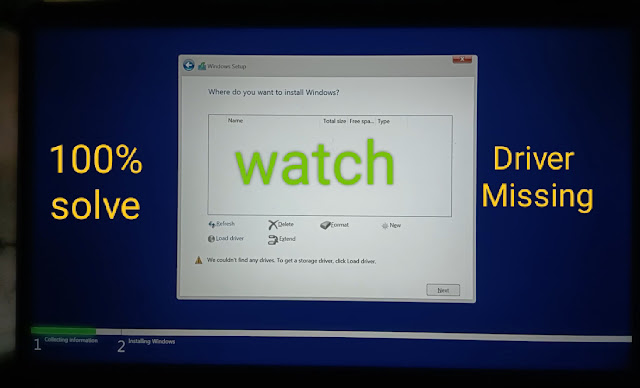
driver missing while installing windows 7,8,9,10,11, | no drivers found windows 8,9,10,11, install

Drivers found windows INSTALLETION 100% solve guide. Before we move to deal with any steps, we suggest you check the system requ...